

Updated July 2026.
Buying a laptop shouldn’t require a computer science degree, but the spec sheets sure make it feel that way. This guide walks through exactly how to choose a laptop in the order that actually matters: what you’ll use it for, how much to spend, and then the handful of specs that make a real difference day to day. By the end, you’ll be able to read any listing and know in about thirty seconds whether it’s right for you.
Step 1: Start With What You’ll Actually Do
Before any spec matters, figure out your primary use case, because it determines everything else on this list.
- Everyday use (browsing, email, streaming, docs): almost any modern laptop handles this. Prioritize battery life and portability over raw power.
- School: weight and battery life matter most since you’re carrying it between classes all day. See our best laptops for college students guide.
- Creative work (photo, video, design): you need a strong CPU/GPU and a color-accurate display. See our video editing and graphic design guides.
- Programming/development: RAM and a fast SSD matter more than GPU power for most developers. See our programming laptops guide.
- Gaming: GPU is the priority, followed by display refresh rate and cooling. See our best laptops hub for current gaming picks.
- Business/travel: durability, battery life, and weight matter more than peak performance. See our business travel guide.
Step 2: How to Choose a Laptop Budget That Fits
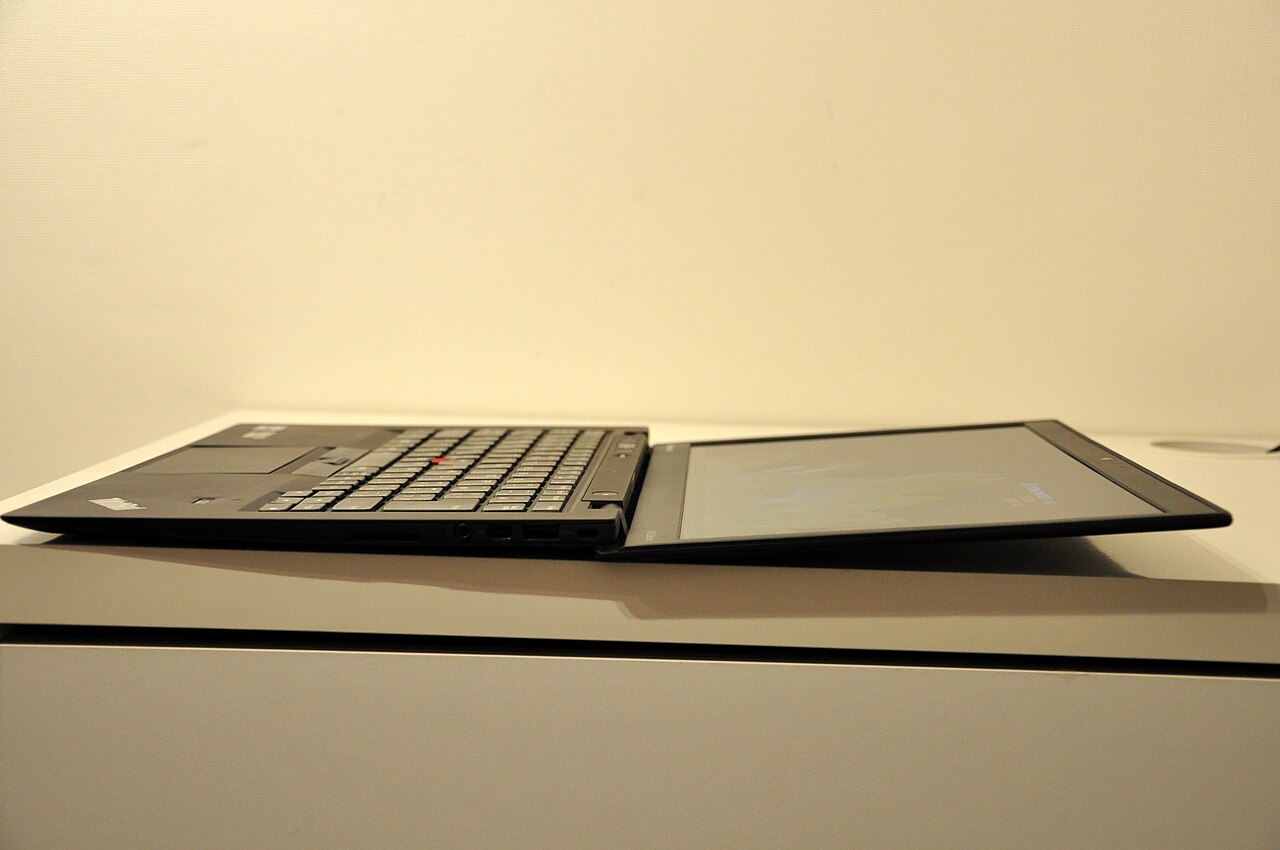
As a rough guide for 2026 pricing:
- Under $500: Chromebooks and entry Windows laptops. Fine for browsing and documents, frustrating for anything heavier.
- $500-$900: The sweet spot for most students and everyday users. This range now includes genuinely good mid-range Windows laptops and Apple’s budget MacBook Neo.
- $900-$1,500: Where most well-reviewed mainstream laptops live, including the MacBook Air and most business ultrabooks.
- $1,500+: Premium builds, high-end gaming laptops, and workstation-class machines for video editing, 3D, or machine learning.
Step 3: The Specs That Actually Matter
Processor (CPU)
For most people, any current-generation Intel Core, AMD Ryzen, or Apple M-series chip is plenty fast. The bigger differentiator today is efficiency (battery life) rather than raw speed. Only chase a higher-tier chip (Intel Core Ultra 7/9, AMD Ryzen 9, Apple M-series Pro/Max) if you’re doing video editing, 3D work, or heavy multitasking. We break this down further in our CPU guide.
RAM (Memory)
8GB is the bare minimum in 2026 and will feel tight within a year or two. 16GB is the sweet spot for most people and will keep the laptop comfortable for 3-4 years. 32GB+ is worth it only for heavy multitasking, video editing, or development work with virtual machines. Full breakdown: how much RAM do you need.
Storage
Always choose an SSD over a traditional hard drive; the speed difference affects everything from boot time to app loading. 256GB is workable if you store files in the cloud; 512GB is a safer default; 1TB+ if you work with large video or design files locally. See SSD vs. HDD for the full comparison.
Display
1080p (Full HD) is the minimum you should accept in 2026. If you do any photo or video work, look for a panel with high sRGB coverage. Gamers should prioritize a high refresh rate (120Hz+) over resolution. OLED screens offer the best contrast and color but typically cost more and use slightly more battery.
Battery Life
Manufacturer battery claims are almost always optimistic. As a rule of thumb, subtract 25-30% from the advertised number to estimate real-world use with a bright screen and Wi-Fi active. If you need a laptop that survives a full school or work day unplugged, look for a minimum advertised rating of 12+ hours.
Weight and Portability
If you carry your laptop daily, anything over 4 lbs (1.8kg) starts to feel noticeable in a backpack. Ultrabooks and MacBooks typically land between 2.5-3.5 lbs; gaming laptops often exceed 5 lbs due to cooling hardware and larger batteries.
Ports
Thinner laptops increasingly ship with only USB-C/Thunderbolt ports. If you rely on USB-A accessories, an SD card reader, or HDMI, check the port list carefully or budget for a dongle/dock.
Step 4: Windows, macOS, or ChromeOS?
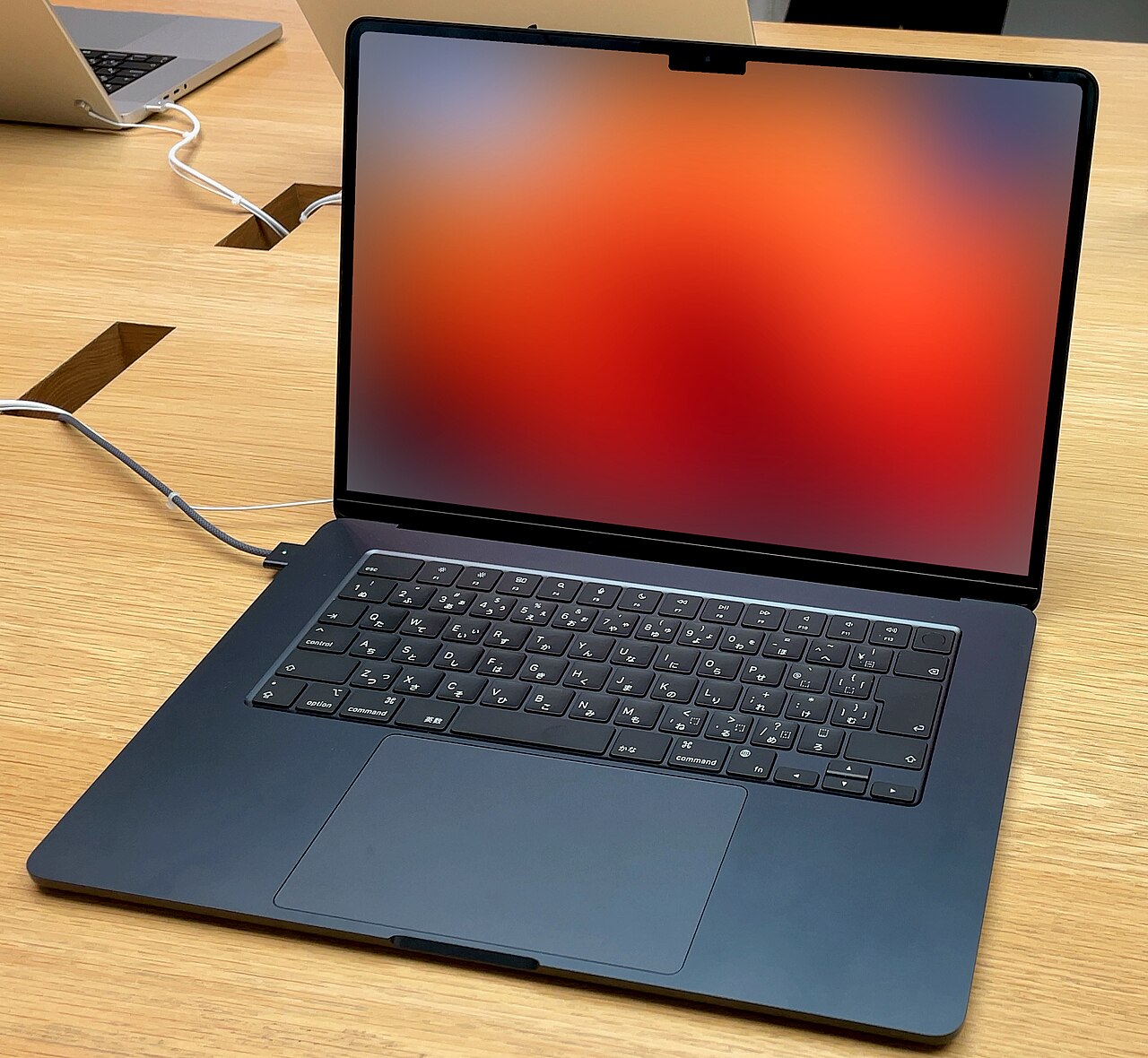
- Windows: the most flexible choice, with the widest range of hardware and software compatibility, including PC gaming and industry-specific software.
- macOS: excellent battery life and build quality, tightly integrated if you already use an iPhone or iPad, but pricier and less flexible for PC gaming or Windows-only software.
- ChromeOS: the simplest and most affordable option, great for browser-based work and light use, but limited for offline or specialized desktop software.
Putting It Together
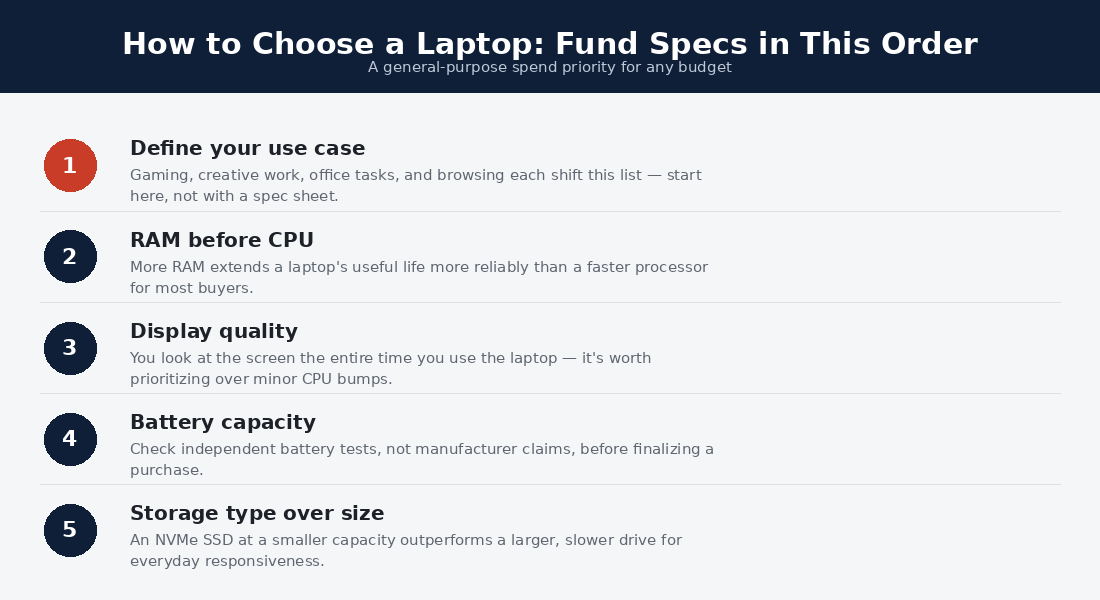
In short: figure out your use case first, set a budget range, then prioritize RAM and storage over chasing the fastest CPU unless you have a specific performance-heavy workload. From there, browse our Best Laptops hub for current top picks by category, or one of our use-case guides if your need is more specific.
Frequently Asked Questions — How to choose a laptop
How long should a laptop last before I need to replace it?
Most well-specced laptops (16GB RAM, SSD) remain comfortable for 4-5 years of everyday use. Budget laptops with 8GB RAM often start feeling slow within 2 years as software grows more demanding.
Is it worth buying a refurbished laptop?
Often yes, especially for business-class laptops like ThinkPads, which are built for durability. Buy only from reputable refurbishers with a warranty. We cover this in detail in refurbished laptops: worth it or not.
Do I need a dedicated graphics card?
Only if you game, edit video, do 3D work, or run machine learning workloads locally. For everyday use, schoolwork, and office tasks, integrated graphics (built into the CPU) are sufficient.
Should I wait for the next generation of chips before buying?
There’s always something newer coming. If your current laptop is holding you back today, buy now rather than waiting indefinitely; you can usually find solid discounts on the current generation once a new one is announced.
Step 5: How to Choose a Laptop by the Things Spec Sheets Hide
Two laptops with identical spec sheets can feel completely different to live with, and the differences hide in things retailers rarely list. Count the ports you actually use in a week: if your desk has an external monitor, you need a USB-C port with DisplayPort output or an HDMI jack — not “USB-C (data only),” a distinction budget laptops love to bury. If you still plug in flash drives and older peripherals, at least one USB-A saves you a lifetime of dongles.
The keyboard deserves five real minutes of testing if you can visit a store. Shallow, mushy keyboards are the most common regret in budget laptop reviews, and no spec measures them. The same goes for trackpad quality, hinge stiffness, and display brightness: 250-nit panels look fine in a dim room and wash out near any window, while 300+ nits handles real rooms and 400+ handles outdoor cafes. Webcam and microphone quality now matter for anyone who takes video calls — 1080p webcams have become standard on good machines, and holdout 720p cameras look noticeably worse.
Finally, check upgradability before you buy, not after. Many thin laptops solder RAM permanently to the motherboard; a machine with a free SODIMM slot or an accessible SSD bay can grow with you for $40 instead of being replaced for $800. A quick search for the model name plus “RAM upgrade” settles it in a minute.
Step 6: When to Buy — Timing Beats Haggling
The same laptop routinely swings 15–25% in price across a year, which means buying at the right moment is worth more than any negotiation. The reliable windows: back-to-school season (July–September), Black Friday through Cyber Monday, and the weeks after CES in January, when outgoing models get cleared for new generations. Amazon’s Prime Day events and manufacturer clearance pages (Lenovo and HP run near-constant sales — their “list prices” are fiction) fill the gaps between.
One caution on timing: buying the newest generation at launch means paying full price for gains most buyers won’t feel. Last year’s CPU generation at 30% off is usually the smarter move for everyone who isn’t chasing maximum performance. And set a price tracker — camelcamelcamel for Amazon or a simple retailer alert — rather than checking manually; good laptop deals often last hours, not days.
Five Buyer Profiles, Five Right Answers
The student needs battery life, durability, and a weight they’ll actually carry — performance far above word processing and forty browser tabs is wasted. A 14-inch machine with 16GB, a current mid-tier CPU, and 10+ hour battery around $600–$800 is the sweet spot; see our best budget laptops for college for specific picks.
The remote worker lives in video calls and a dozen simultaneous apps. Prioritize 16GB minimum (32GB if your work is heavy), a 1080p webcam, a comfortable keyboard, and easy external-monitor support through USB-C. Business lines — ThinkPad, Latitude, EliteBook — earn their premium here through keyboards and reliability.
The creator editing photo and video needs the things everyone else can skip: a color-accurate 100% sRGB or P3 display, a strong multi-core CPU, 32GB of RAM, and — for video work — a capable GPU, whether discrete or Apple Silicon. Budget for a fast external SSD too; media libraries fill internal drives fast.
The gamer is really buying a GPU with a laptop attached. A current RTX-class card, a 144Hz+ display, and honest cooling matter more than thinness — check our gaming laptop guide for the price-to-frames math.
The trader or finance professional needs multi-monitor support, a fast CPU for real-time charting, and rock-solid reliability during market hours — a profile different enough that we wrote a dedicated best laptop for day trading guide covering platform compatibility, screen setups, and picks at every budget.
How to Choose a Laptop Without the $300 Mistakes
The most expensive mistake is paying for the wrong upgrade: a faster CPU tier on a machine with 8GB of RAM, an OLED screen on a laptop that will spend its life docked to a monitor, or a gaming GPU for someone who doesn’t game. The second is trusting marketing names over part numbers — “Intel Core” spans a huge performance range, and two laptops with the same sticker can differ by half. Look up the exact processor model, not the brand family.
Third: ignoring the charger and battery reality. A “17-hour battery” claim from a manufacturer usually means 8–10 hours of real mixed use; independent review battery tests are the only numbers worth reading. Fourth: buying a 128GB or 256GB SSD to save $50, then living with a permanently full drive — 512GB is the modern floor. And fifth: skipping the return window. Use the first two weeks hard, because keyboard comfort, screen quality, and fan noise only reveal themselves in daily use.
Warranty, Returns, and the Two-Week Test
Standard laptop warranties cover one year of manufacturing defects — not drops, not spills. Extended coverage is usually worth skipping on budget machines and worth considering on $1,200+ purchases, especially accidental-damage plans for students and travelers. What matters more is the return policy: buy from retailers with a no-questions 15–30 day window, and treat that window as your real review period. Run your actual workload, not a benchmark: your apps, your tabs, your video calls, a full day unplugged. If the fan noise annoys you in week one, it will enrage you in year two. A laptop you use daily for four years costs pennies per hour; the two-week test is the cheapest insurance you’ll ever get on that investment.
Step 7: How to Choose a Laptop From the Refurbished and Open-Box Market
The best value in laptops is rarely a new machine at full price. Three shortcuts consistently beat the sticker game. Manufacturer-refurbished units — sold directly by Apple, Lenovo, or Dell outlet stores — carry full warranties and typically save 15–25% for cosmetic imperfections you will stop noticing in a week. Open-box units at big retailers save 10–20% and are usually just returns from buyers who changed their minds; inspect the battery cycle count and screen on day one and you keep the same return rights as a new purchase.
The deepest discount is the corporate off-lease market: three-year-old business laptops — ThinkPad T-series, Dell Latitude, HP EliteBook — flood refurbishers by the thousands and sell for $250–$450 with better keyboards and build quality than any new consumer laptop at the price. The trade-offs are real but known: an older CPU generation, a used battery, and usually a 1080p non-touch screen. For a second machine, a student budget, or anyone whose workload is browsing and documents, it is the single best value in computing. Buy from sellers with at least 90-day warranties and real return windows, and check that the RAM is upgradeable so a $40 stick can modernize it later.
How to Read Laptop Reviews Without Getting Played
Once you have a shortlist, reviews decide the winner — but review quality varies wildly. Trust reviews that publish measurements: screen brightness in nits, real battery test results in hours, sustained performance after 20 minutes of load, keyboard travel, and fan noise in decibels. Be skeptical of reviews that only restate the spec sheet, and of affiliate roundups that rank forty laptops nobody could have tested.
Cross-check two independent sources against user reviews filtered for one-star complaints: recurring mentions of hinge cracks, coil whine, or Wi-Fi dropouts are signal; single angry shipping stories are noise. Finally, check the review’s configuration against the one you’re buying — a glowing review of the $1,400 OLED model tells you little about the $700 base version with half the RAM and a dimmer panel.
Quick recap — the final word on how to choose a laptop: how to choose a laptop is answered by measuring, not guessing. The sections above walk how to choose a laptop step by step, and the checklists make how to choose a laptop a one-afternoon decision instead of a month of doubt.
More Questions, Answered
How to choose a laptop RAM size — is 8GB still enough in 2026?
For light browsing and documents, barely. For everyone else, no — modern browsers alone can consume it. 16GB is the recommendation for every buyer profile in this guide, and it is the one spec you should never trade away for a prettier screen.
Should I wait for the next generation of laptops?
There is always a next generation. If your current machine works, waiting for a launch and then buying the outgoing model at clearance is the value play. If your laptop is failing now, buy now — a machine you need beats a machine that’s 8% faster in six months.
Are extended warranties worth it?
Usually not on machines under $800 — the payout math favors the seller. Consider accidental-damage coverage for students, travelers, and anyone buying above $1,200, where a single screen replacement can cost a third of the laptop’s price.
If I know how to choose a laptop well, how long should it last?
Four to six years for a well-specced machine (16GB RAM, 512GB SSD, current-gen CPU), and the battery is almost always the first thing to age out — often replaceable for $60–$100. Buying one tier above your current needs is the cheapest way to add a year or two at the end of that life.
Mac or Windows for most people?
If your software runs on both, pick the ecosystem your phone and habits already live in — the friction of switching platforms outweighs most hardware differences. MacBooks lead on battery, displays, and resale value; Windows machines win on price range, ports, touchscreens, gaming, and upgradability. Either choice, made deliberately at the right spec level, will serve you well for years.
