

Updated July 2026. As an Amazon Associate and affiliate partner, UrbanLaptop may earn a commission from qualifying purchases made through links on this page, at no extra cost to you. See our affiliate disclosure.
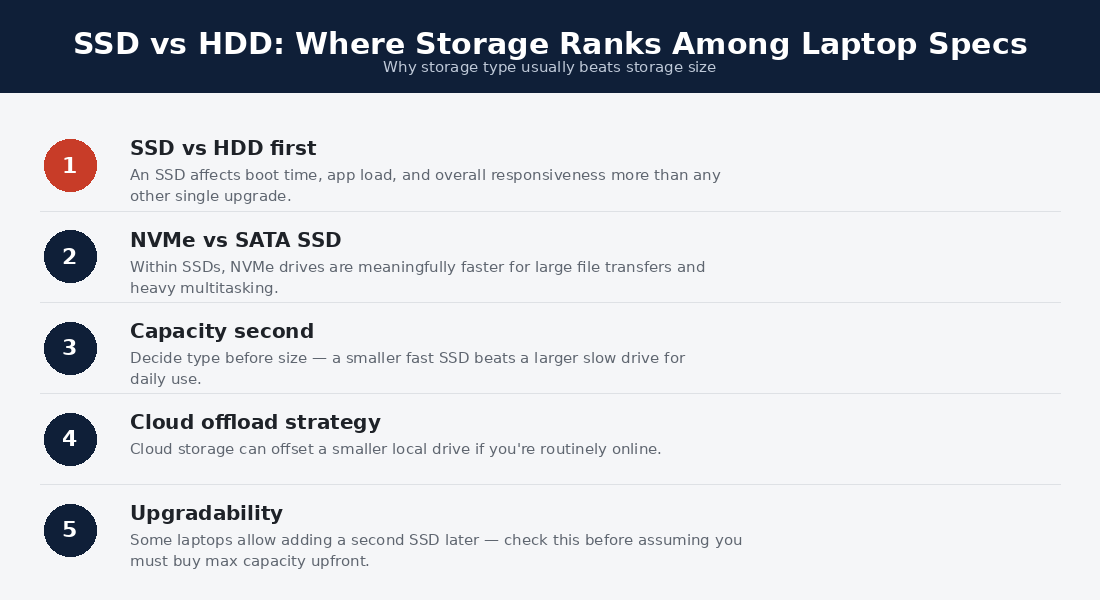
The SSD vs HDD question has a rare quality in tech buying: a settled answer. For laptops, the SSD won — comprehensively, years ago, on every dimension a portable machine cares about — and the interesting questions moved one level down: which SSD specs matter, when the surviving HDD still earns a role, and how storage decisions shape a laptop’s whole life. This guide gives the SSD vs HDD verdict its two honest paragraphs, then spends the rest on the decisions buyers still actually face.
SSD vs HDD: The Settled Verdict
Solid-state drives store data in flash memory with no moving parts; hard disk drives spin magnetic platters read by a mechanical arm. In a laptop, that mechanical difference decides everything: the SSD boots in seconds where the HDD grinds for a minute, launches apps instantly, survives the drops and jolts of bag life that kill spinning platters, draws less battery, weighs less, and makes no sound. The SSD vs HDD performance gap isn’t a percentage — it is a category: 10-50x on the random reads that daily computing is made of.
Price closed the argument’s last exit: SSD cost-per-gigabyte fell far enough that mainstream capacities carry trivial premiums, and no current laptop worth buying ships with an HDD as its system drive. If you are choosing a laptop in 2026, the SSD vs HDD question is answered before you ask it — every machine on this site’s guides is NVMe solid-state, and a used laptop old enough to carry a spinning drive fails our budget guide’s floors on other grounds anyway. What remains worth knowing follows below.
The SSD Specs That Still Matter
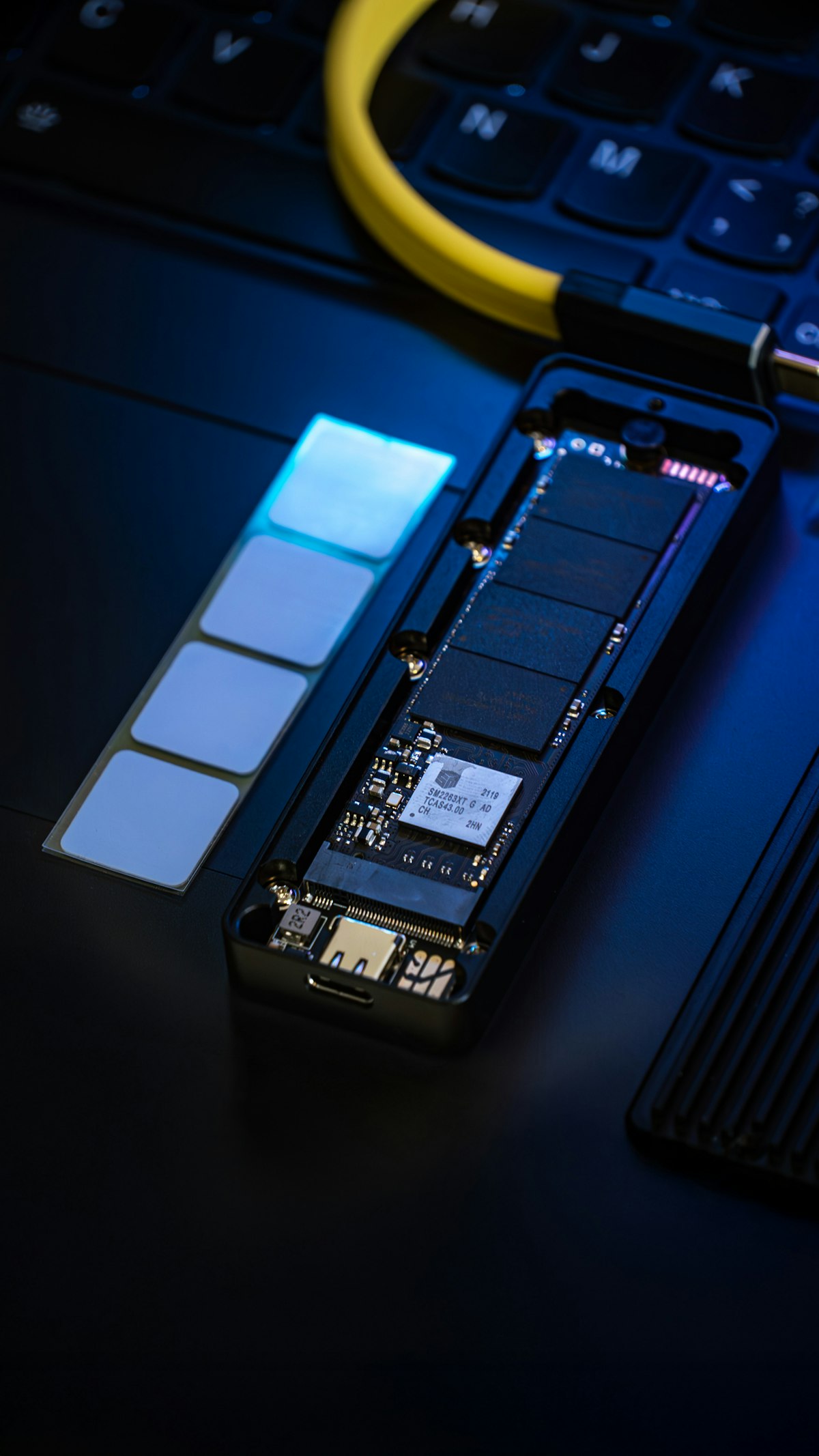
Capacity is the real decision: 256GB fills by year two and slows as it fills (SSDs degrade in performance near-full); 512GB is the sane floor this site enforces everywhere; 1TB serves media-heavy and creative lives. Interface generations (NVMe Gen 3/4/5) matter less than the boxes imply: the leaps benchmark beautifully and feel identical in daily work — a Gen 3 drive is not a reason to skip a good machine, per the sustained measurements at Notebookcheck. Replaceability is the sleeper spec: a standard M.2 slot behind ordinary screws — the business-line norm our fleet-laptop comparison celebrates — lets storage grow at component prices, while soldered storage makes the checkout choice permanent, Apple’s quiet tax.
How the SSD vs HDD Race Actually Ended
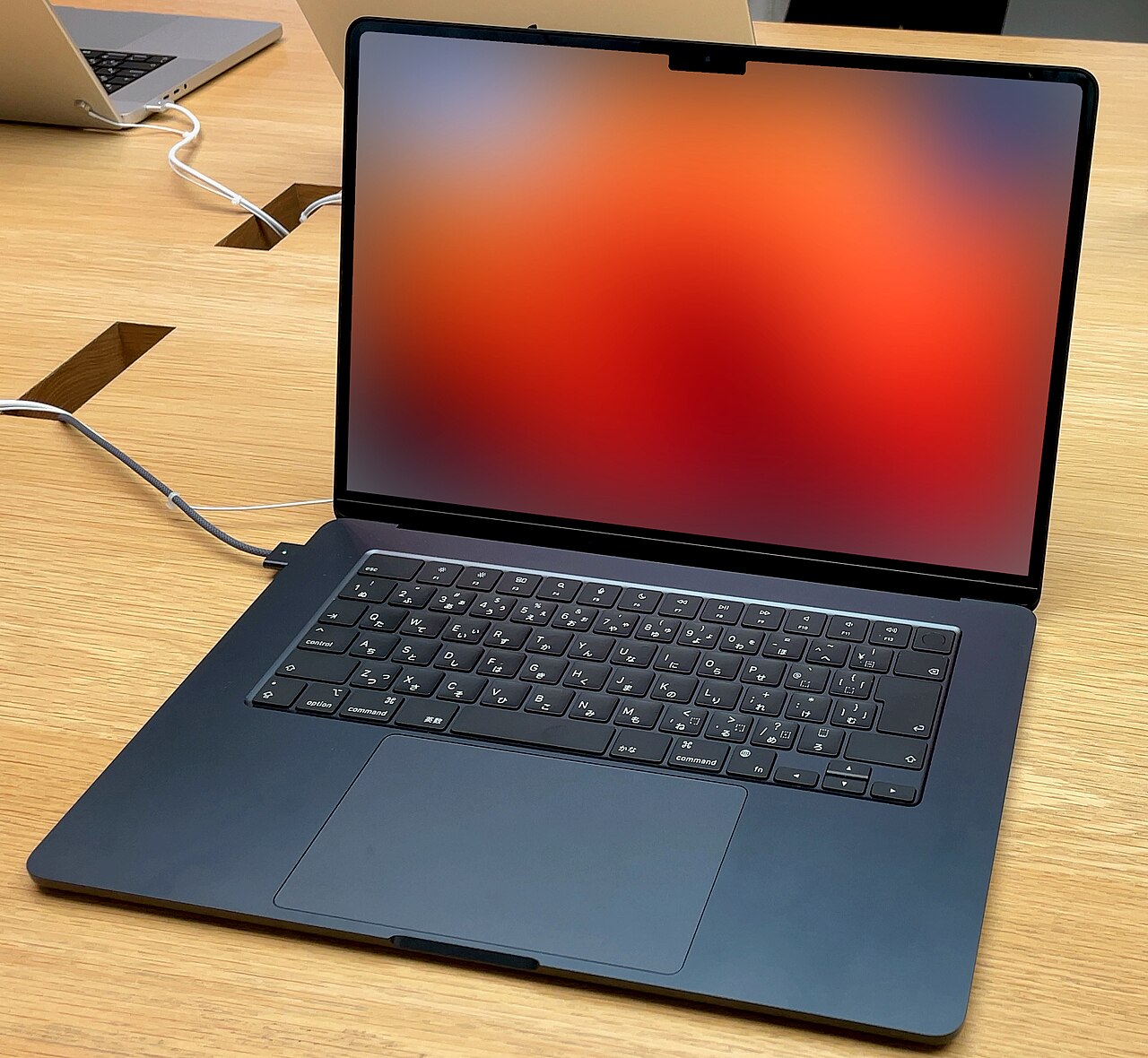
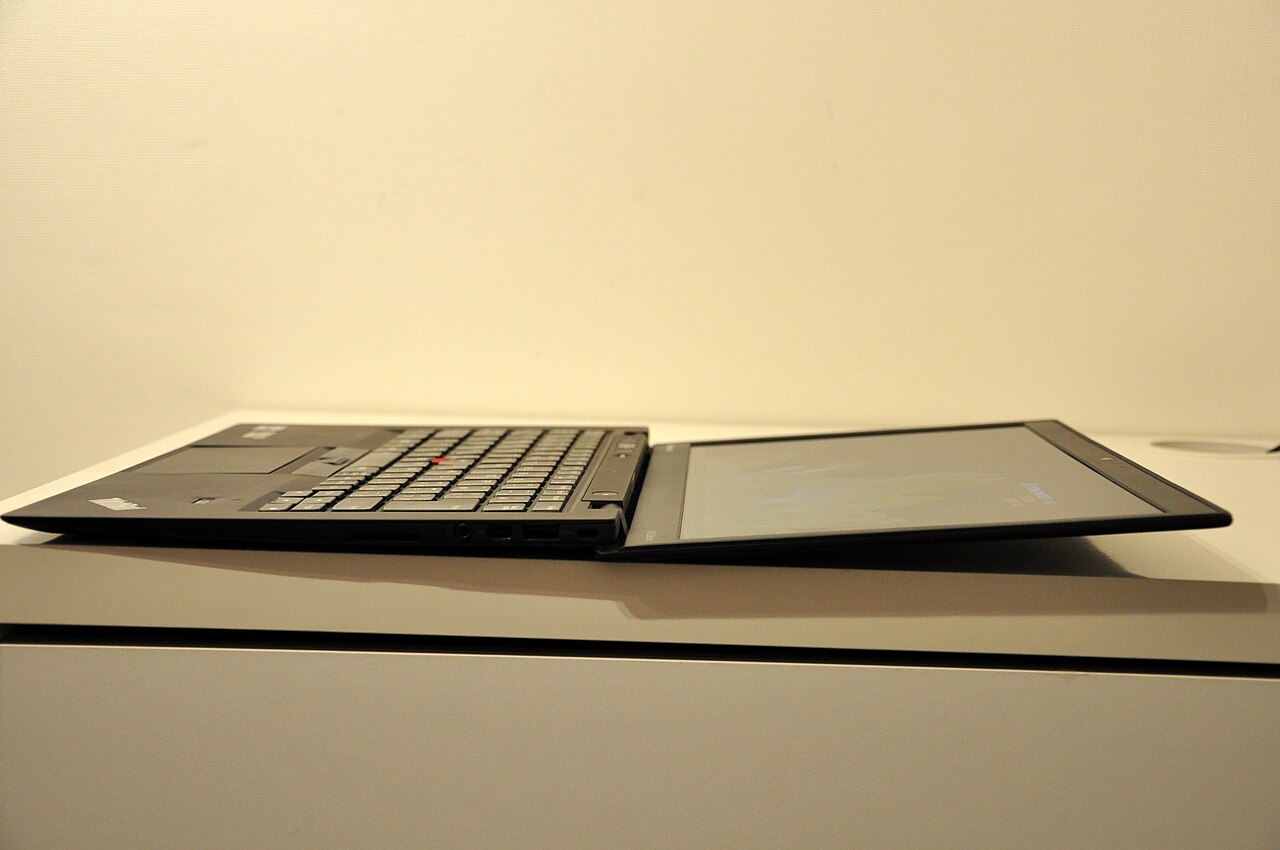
The SSD vs HDD contest was decided less by speed than by what flash made possible. Spinning drives dictated the old laptop’s shape: thickness for the platters, shock mounting for the mechanism, battery budget for the motor, and a fragility that made every drop a data event. Flash removed the constraint set entirely — the thin, silent, instant-wake, bag-proof machines that fill this site’s guides are downstream of that one component swap. The MacBook Air lineage made the case first; the entire industry’s current form factor is the argument concluded.
The economics followed the engineering: flash prices fell on semiconductor curves while HDD costs floored on mechanical minimums — a platter drive cannot get much cheaper than its motor and arm. Once mainstream SSD capacities crossed affordability, the SSD vs HDD price argument inverted at laptop scale: the HDD’s remaining edge lives only at multi-terabyte bulk sizes no laptop needs internally. History’s verdict, visible in every current spec sheet: the question this page answers is one the market answered first.
Storage Across the Lives This Site Covers
Students hit storage reality fastest — lecture recordings and datasets fill 256GB by sophomore year, the exact reason our college guide enforces the 512GB floor and prizes the refurb machines whose M.2 slots upgrade cheaply. Traders need surprisingly little: platforms and data feeds are light, and the SSD’s real gift to trading is instant wake and zero mechanical failure risk under desk vibration — details our trading guide folds into its reliability case.
Creative workers live at the opposite pole: 1TB internal minimum, fast external SSDs for active projects, and HDD archives for finished work — the full three-layer stack at professional scale. Nomads and commuters weigh the offline dimension: internal capacity is what survives bad bandwidth, per the sync discipline the travel guides preach.
Where HDDs Still Earn Their Keep
The spinning drive retired from laptops and moved into the supporting cast, where its economics still win. External backup drives: a desktop HDD delivers multi-terabyte local backup at a fraction of flash prices — the right home for photo archives and the offline layer of a backup strategy. Media libraries and NAS boxes: bulk storage that streams over the network cares nothing for seek times, and HDD cost-per-terabyte owns the role. The SSD vs HDD division of labor in 2026: flash for everything that moves or runs, platters for everything that sits and holds — a clean split that ends the debate by giving each side the job it deserves.
Storage Strategy for Laptop Owners
The modern laptop storage stack has three layers, and buying them deliberately beats over-buying any one. The internal SSD holds the OS, apps, and working files — sized 512GB-plus so it never runs the near-full slowdown. Cloud sync carries the working set across devices and doubles as the always-current backup layer — with the offline-sync discipline our Chromebook guide and nomad coverage both preach for bandwidth-poor days. And a local external drive — SSD for speed and portability, HDD for capacity per dollar — completes the 3-2-1 backup shape and absorbs the archives that would otherwise bloat the internal drive. Owners running this stack stop thinking about storage entirely, which is the goal.
External Drives: The SSD vs HDD Question That Survives
The one place the SSD vs HDD comparison still demands a live decision is the external drive aisle, and the split is honest. Portable external SSDs win everything that travels: pocket weight, drop-proof flash, and transfer speeds that make project shuttling painless — the right buy for active files, photographers in the field, and the nomad kit our travel guides pack. Desktop external HDDs win everything that stays: multi-terabyte capacity at a third the flash price, perfect for the backup and archive layers where speed is irrelevant because the drive works while you sleep.
The buying shorthand: if the drive rides in a bag, flash; if it lives on a shelf, platters. Mixed lives run one of each for less than a single large SSD — the portable for the working set, the desk drive for the 3-2-1 backup’s local copy — which quietly completes the storage stack this guide keeps assembling. The SSD vs HDD debate didn’t die so much as specialize, and the external aisle is where its last honest round plays out weekly.
The Cloud Layer: Rented Storage, Honestly Priced
No storage guide survives 2026 without the third contender: cloud storage competes with both drive types for chunks of the same job. Its wins are real — automatic sync, off-site backup by definition, and access from every device — and so are its costs: subscription pricing that exceeds drive ownership within a couple of years at large capacities, bandwidth dependence that travel exposes brutally, and the quiet fact that a cloud account is a service relationship rather than a possession.
The rational split mirrors the whole guide: cloud for the working set and the always-current backup layer, local SSD for speed and offline certainty, HDD for the bulk archive — three technologies, three jobs, no single winner needed. Owners who assign the jobs deliberately spend less than owners who over-buy any single layer, which is this page’s thesis applied one level up.
Keeping an SSD Healthy for Years
SSDs need less care than the platters they replaced, and the care they need is different. Keep 15-20% of the drive free — flash management needs the headroom, and the near-full slowdown is the commonest self-inflicted storage complaint. Skip defragmentation entirely: it does nothing for flash and burns write cycles (modern OSes know this; old habits don’t). Leave the drive’s TRIM housekeeping on (default everywhere current), and check the health readout — every OS exposes one — annually or before any big trip. Write-endurance anxiety, the SSD vs HDD era’s inherited fear, can retire: mainstream drives carry endurance ratings that outlast the laptop around them by years under any realistic workload.
Upgrading Storage: The Owner’s Playbook
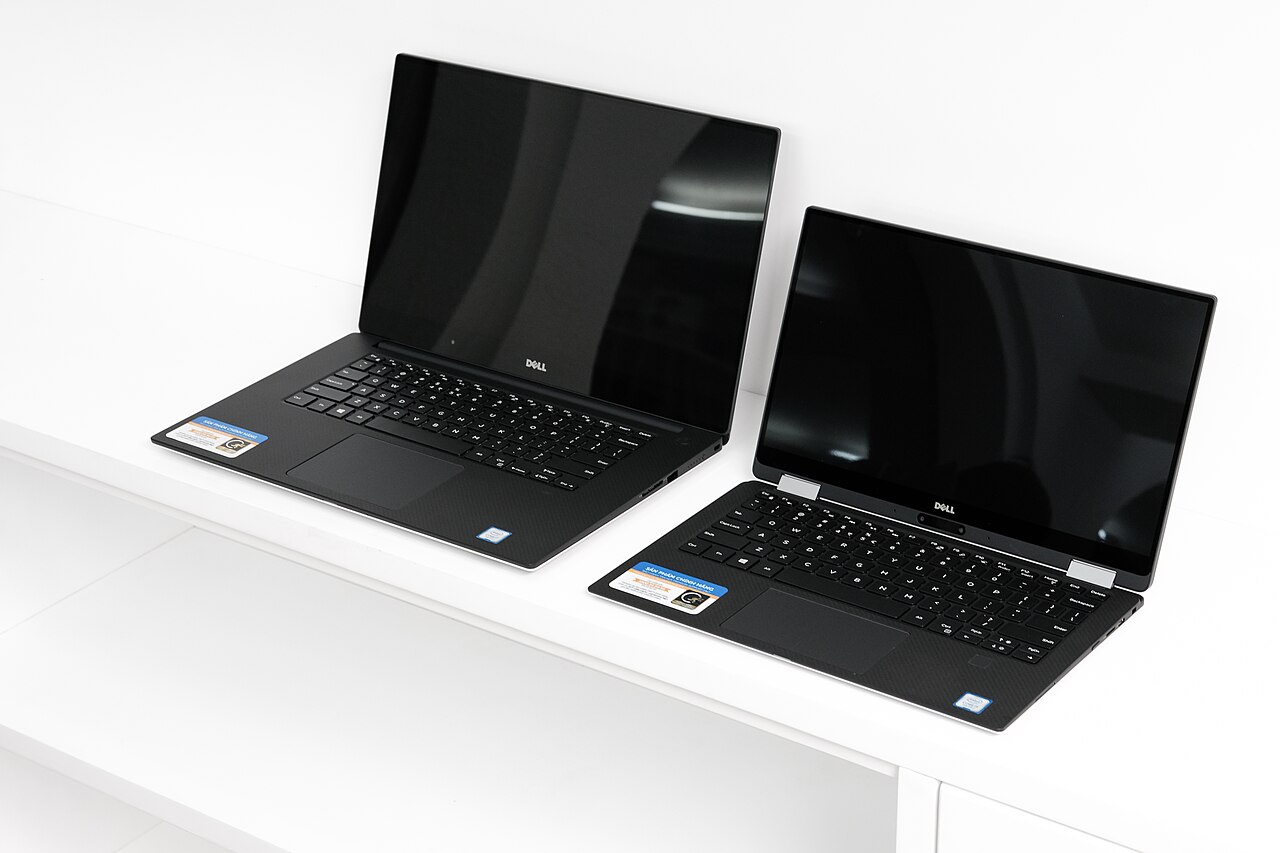
For machines with accessible M.2 slots, the SSD upgrade is the best value surgery in laptops: a screwdriver, twenty minutes, and component pricing that runs half of what configurators charged at checkout. The playbook: verify the slot type and length in the service manual (the fleet lines publish them; our Framework review covers the machine built entirely around this idea), clone or reinstall the OS to the new drive, and demote the old drive to an external enclosure for $15 — instant portable SSD from spare parts. Owners of soldered machines skip the surgery and run the external-plus-cloud stack instead, which recovers most of the practical benefit at slightly more desk clutter.
Timing the upgrade follows the near-full rule: when the internal drive crosses 80-85% and cleanup stops recovering meaningful space, the upgrade window opens — before the slowdown, not after the frustration. The 2TB tier has joined the value zone recently, making today’s upgrades bigger than most machines’ original ceilings and quietly extending laptop lifespans the way RAM upgrades used to. The SSD vs HDD era’s last gift to tinkerers: the winning technology is also the easier one to swap.
Does the SSD vs HDD answer change for gaming laptops?
Only in scale: modern game installs are enormous, load times reward NVMe, and several current titles now list SSDs as requirements rather than recommendations — flash won gaming even more decisively than office life. The gaming-specific advice is 1TB minimum internal (two big titles can fill a 512GB drive), a second M.2 slot as a genuinely useful spec on the machines in our gaming guide, and external HDDs demoted to archiving the library’s inactive half.
SSD vs HDD FAQs
Is an SSD really faster than an HDD in daily use?
Categorically: boots in seconds versus a minute, instant app launches, and no mechanical wait on the thousand small reads a working day generates. It is the single largest perceived-speed upgrade in computing history, which is why the argument ended.
How much SSD storage do I need in a laptop?
512GB for most lives — the floor that survives lecture recordings, photo libraries, and years of accumulation without the near-full slowdown. 1TB for creative and media-heavy work; 256GB only alongside disciplined cloud habits.
Do SSDs wear out or lose data?
Endurance ratings on current drives outlast the laptop under realistic use, and failure rates run below the mechanical drives they replaced. The honest caveat is universal to all storage: single copies are the risk, which is why the backup stack above — not drive choice — is the real data-safety decision.
Should I ever buy a laptop with an HDD in 2026?
No — any laptop still shipping platters as its system drive is signaling its whole tier. The HDD’s remaining laptop-adjacent role is the external backup and archive drive, where its price-per-terabyte still wins honestly.
Can I upgrade my laptop’s SSD later?
On machines with standard M.2 slots — most business lines, many Windows machines, the Framework by design — yes, cheaply and in minutes. On soldered-storage machines (Apple and a growing thin-and-light tier), never: buy the capacity at checkout. The slot is worth checking before purchase; it is the difference between a storage decision and a storage sentence.
What about SSD vs HDD for long-term archival storage?
The one technical round platters still win on merit: powered-off HDDs hold data reliably for years where unpowered flash slowly leaks charge, making the desk HDD the better cold-archive medium for the photo library’s deep history. The professional practice both technologies share: no archive is real without redundancy, so the cold drive pairs with a cloud or second-drive copy, and either medium gets powered up and verified annually. For everything short of decade-scale cold storage, the working answer stays flash.
Do external SSDs need special cables or ports?
They inherit whatever the port provides: a modern portable SSD saturates USB-C comfortably, reaches its rated speeds over the higher USB and Thunderbolt tiers, and falls back gracefully on older ports — functional everywhere, fastest where the laptop’s spec sheet already said so. The practical notes: use the cable that shipped in the box (cables are the silent bottleneck), and format for the ecosystem the drive will serve — exFAT remains the cross-platform lingua franca for drives that visit both Windows and Mac desks.
How does storage affect laptop resale value?
More than most sellers expect: capacity is a headline line in used listings, and the 512GB-versus-256GB gap routinely returns its original cost difference at sale — one more compounding argument for the floor this guide enforces. Upgradeable machines add a second effect: an owner who dropped a 2TB drive into an M.2 slot sells a visibly better machine than the sticker model, while soldered-storage sellers are locked to their checkout decision one final time. The SSD vs HDD question never reaches resale; the capacity question always does.
Where should SSD vs HDD shoppers verify drive claims independently?
The same referee culture the rest of this site leans on: sustained-transfer and thermal-throttle measurements from independent labs separate honest drives from cache-burst marketing, and long-term reliability surveys — the annualized failure statistics published by large-scale storage operators like Backblaze — remain the gold standard for both technologies’ real-world endurance. Ten minutes against those sources catches the external-drive aisle’s classic traps: portable SSDs that throttle after thirty seconds of sustained writing, and budget HDD models whose failure curves the surveys flag years before the reviews do.
Does the SSD vs HDD choice matter for Linux machines?
The verdict transfers unchanged — flash internal, always — with one bonus for the penguin crowd: Linux exposes drive health, TRIM scheduling, and filesystem tuning more transparently than the commercial platforms, making the maintenance section above a five-minute terminal session. The machines our Linux guide ranks all carry serviceable M.2 slots, which keeps the upgrade playbook fully in play — the fleet-hardware and open-storage philosophies were always natural allies, and the SSD vs HDD era’s end only strengthened the pairing.
Verdict: The Ultimate Storage Answer Moved On
SSD vs HDD ends as the rare tech question with a clean winner: flash for the laptop, always — and platters for the archive shelf, where their economics retire with dignity. The decisions that still pay attention are capacity (512GB floor), replaceability (check the slot), and the three-layer backup stack that makes any single drive’s fate boring. Settle those three and storage joins the list of solved problems — exactly where a spec this fundamental belongs.
