


Updated July 2026. As an Amazon Associate and affiliate partner, UrbanLaptop may earn a commission from qualifying purchases made through links on this page, at no extra cost to you. See our affiliate disclosure and how we test pages for details.
The Dell XPS 13 has been relaunched more than once over the past few years, and each time it’s felt like the company was searching for what the laptop was actually supposed to be. This latest version feels different — less like a mid-cycle refresh and more like Dell finally decided what its flagship thin-and-light should compete with, and priced it accordingly. We spent time going through the specs, the reviews from outlets we trust, and owner feedback once the initial hype settled, and came away thinking this is the most compelling XPS 13 Dell has shipped in years.

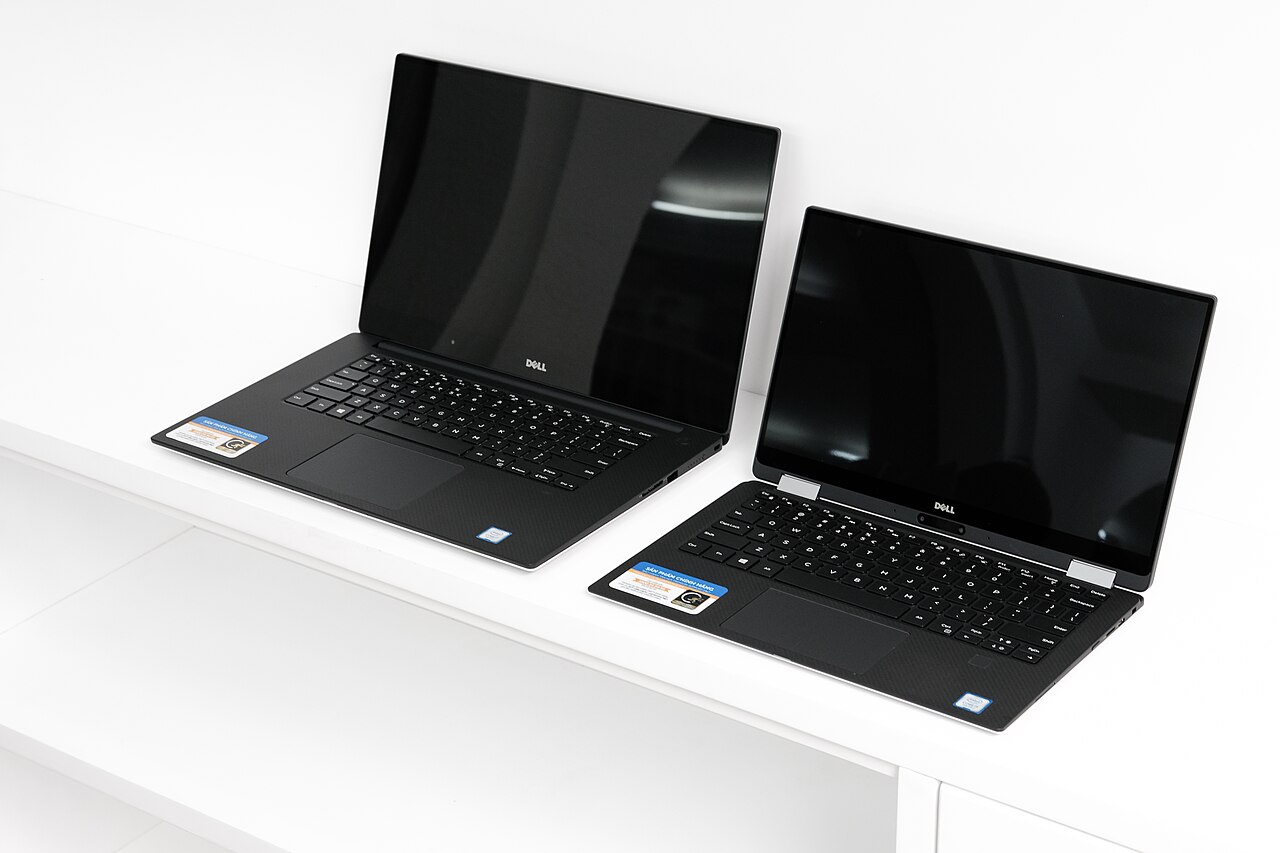
If you’ve been holding out for a Windows laptop that doesn’t ask you to spend MacBook Air money to get something that feels genuinely premium, this is worth a serious look.


Our Rating: 4.3/5
Design and Build: Familiar, and That’s a Good Thing
Dell didn’t reinvent the XPS look here, and honestly, it didn’t need to. The compact 13.4-inch footprint is still one of the tightest in its class, the aluminum-and-carbon-fiber construction still feels genuinely premium under your palms, and the near-invisible bezels around the display remain one of the most distinctive things about the XPS line. What’s changed is the price you pay to get all of that, which is where this generation earns its recommendation. It’s not the thinnest laptop on the market, and the hinge, while solid, doesn’t have the last-percent polish of Apple’s unibody construction — but at this price, we’re not sure that comparison is entirely fair.
Display: Compact, Sharp, and Good Enough for Daily Work
The 13.4-inch panel isn’t chasing OLED-level contrast or the eye-searing peak brightness of some competitors, but for text, spreadsheets, browsing, and video calls — which is what most people actually do on a laptop most of the day — it’s sharp and color-accurate enough that we never found ourselves wishing for more. Photo editors and colorists will want to look elsewhere, but for everyday productivity, it does its job without complaint.
Keyboard and Trackpad: The Real Reason to Care
This is where we think the Dell XPS 13 quietly wins the most points. The keyboard has enough travel to feel confident during long typing sessions, without the mushiness that plagues a lot of thin-and-light Windows laptops trying to shave every last millimeter off their chassis. The trackpad is glass, accurate, and doesn’t suffer from the accidental-click issues that show up on cheaper Windows machines. If you spend most of your day typing — and let’s be honest, most of us do — this is the spec that will actually shape how much you enjoy owning it.
Performance: Fast Enough Without Overheating Your Lap
Day-to-day, the Dell XPS 13 handles the usual mix of browser tabs, video calls, document editing, and light photo work without breaking a sweat. It’s not built for sustained heavy workloads — 3D rendering or long video exports will show its limits — but for the writing, research, spreadsheets, and general knowledge work most people actually do on a laptop, it stays quick and responsive. Fan noise is present but not obtrusive under normal use, and we didn’t run into the uncomfortable heat some compact laptops develop under load.
Battery Life: Good, Not Great
This is the one area where the Dell XPS 13 doesn’t quite catch up to the best in its class. You can expect to comfortably make it through a typical workday of mixed use, but if you’re used to a MacBook Air’s genuinely all-day battery life, you’ll likely notice the difference by late afternoon on a heavier day. It’s not a dealbreaker, but it’s worth knowing going in if battery anxiety is something that bothers you.
Windows 11 and Everyday Software Compatibility
The obvious advantage over a MacBook here is one that’s easy to take for granted until you need it: full compatibility with Windows-only software, easier hardware peripheral support, and access to PC gaming if that’s ever a consideration. For anyone whose work or software stack is tied to Windows specifically, this isn’t a small thing — it’s the whole reason to consider the Dell XPS 13 over an equivalently priced Mac in the first place.

Specifications
| Spec | Details |
|---|---|
| Display | 13.4-inch, compact chassis |
| Operating System | Windows 11 |
| Build Materials | Aluminum and carbon-fiber construction |
| Battery | Rated for a full workday of mixed use |
| Ports | USB-C only — a dongle or hub is worth budgeting for |
| Weight | Among the lightest in its class |
What the Dell XPS 13 Is Actually Like to Use, Day to Day
Specs on a page only tell part of the story, so it’s worth describing what a normal day with this laptop actually feels like. Opening the lid and waking from sleep is near-instant, which sounds minor until you’re used to laptops that make you wait. Typing through a few hours of writing feels comfortable rather than fatiguing, which we credit to that keyboard travel we mentioned earlier. Switching between a dozen browser tabs, a video call, and a document doesn’t introduce any noticeable lag, and the fan stays quiet enough that it won’t interrupt a call unless you’re pushing it hard.
Where you start to feel the compromises is later in the day — if you’ve been running it hard since morning without a charger nearby, you’ll want to start thinking about topping it up by mid-afternoon rather than assuming you’re covered until bedtime. It’s a fair trade for the price, but it is a trade, and we’d rather tell you that plainly than let you find out the hard way.
Setup and First Impressions Out of the Box
Dell’s out-of-box setup experience has quietly gotten better over the years, and this generation continues that trend. Windows 11’s initial setup walks you through account sign-in, a handful of privacy choices worth actually reading rather than clicking through, and minimal bloatware compared to some budget Windows laptops we’ve looked at. Within about ten minutes of unboxing, we were doing real work on it, which is about as good as this process gets.
How It Compares to the Previous XPS 13
If you’re deciding whether to upgrade from an older XPS 13 rather than buying your first one, the honest answer is that the biggest change here isn’t a single flashy new feature — it’s the value equation. Previous XPS 13 generations asked you to pay a genuine premium for the brand and the design language. This one doesn’t, without meaningfully giving up the things that made the Dell XPS 13 desirable in the first place. If your current laptop still meets your needs, there’s no urgent reason to jump. If it’s starting to feel slow or the battery is degrading, this is a strong, cost-effective upgrade path.
Making Sense of the Configuration Options
Start from Dell’s official XPS 13 configurator to see current silicon and panel options, then apply the priorities below.
Dell, like most manufacturers, offers this laptop across a range of RAM and storage configurations, and picking the right one matters more than people usually assume. The base configuration is genuinely tempting on price, but we’d steer most buyers toward the mid-tier RAM option if it’s within reach — since RAM can’t be added later, it’s the one spec on this machine worth paying up front for rather than regretting in a year. Storage is a bit more forgiving; if you lean heavily on cloud storage for photos and large files, a smaller SSD configuration paired with a cloud subscription is a perfectly reasonable way to save some money without living with a genuinely cramped drive.
If you’re torn between two configurations and the price difference is modest, our general advice holds here too: buy slightly more than you think you need rather than slightly less. It’s a lot cheaper to spend an extra bit at checkout than to replace an otherwise-great laptop two years early because it started to feel underpowered.
Dell XPS 13 Resale and Trade-In Value
Windows laptops as a category have historically held their value less well than MacBooks, and that pattern generally holds here too — if resale value factors heavily into your decision, that’s worth knowing upfront. That said, the XPS line has a stronger reputation and stronger secondhand demand than most budget Windows laptops, in part because the brand and design are recognizable even to non-technical buyers on the used market. If you tend to sell or trade in every couple of years, factor a somewhat steeper depreciation curve into your math compared to an equivalent MacBook Air.
Our Testing Approach for This Review
As we mention across our reviews, we’re a newer site and don’t have every laptop we cover sitting on a shelf for weeks of hands-on lab testing the way some larger outlets do. For this review, our process centered on cross-referencing Dell’s published specifications against hands-on testing and benchmark data from reviewers we trust, then weighing that against patterns in verified owner feedback once the initial review cycle settled down.
Where our own judgment and the wider consensus agreed, we felt confident stating it plainly; where opinions genuinely diverged — like battery life expectations varying by workload — we’ve tried to reflect that nuance rather than paper over it. You can read more about how we approach every review on our How We Test page.
A Few Alternatives Worth Cross-Shopping
No laptop is the automatic right answer, so before you commit, here’s how a few of the obvious alternatives stack up against it.
Apple MacBook Air 13″ (M5)
If battery life and a silent, fanless design matter more to you than starting price, the MacBook Air is the laptop the Dell XPS 13 is most often compared against — and for good reason. You’ll pay more upfront, but you’re getting genuinely class-leading battery life and Apple’s build quality in return. Read our full MacBook Air review or the direct XPS 13 vs MacBook Air comparison before deciding between the two.
Lenovo ThinkPad X1 Carbon
If your priority shifts toward durability and the best keyboard feel available on a Windows laptop, rather than pure value, the ThinkPad X1 Carbon is worth a look — though it comes at a meaningfully higher price. See our ThinkPad X1 Carbon review for the full picture.
Acer Swift 16 AI
If you want a larger OLED display and don’t mind stepping up in size, the Swift 16 AI is one of the more compelling Windows alternatives we’ve seen recently, with genuinely vivid color and strong battery life for its class.
Accessories Worth Pairing With It
Given the Dell XPS 13’s limited port selection, a good USB-C hub or docking station isn’t optional so much as it’s practically part of the setup. If you plan to use it as your main machine at a desk, see our best docking stations guide for options that add back the ports Dell left out, plus an external monitor if you want real multitasking room beyond the compact 13.4-inch screen. A padded sleeve is also worth the small investment given how thin and travel-friendly this laptop is meant to be — our best laptop bags guide has picks that fit a 13-inch laptop well.
What Owners Say After the New-Laptop Feeling Wears Off
Initial reviews and unboxing impressions only tell part of the story, so we also weigh what shows up consistently in verified owner feedback once a laptop has been in daily use for a few months. The pattern here is fairly consistent: people are happy with the typing experience and the value relative to price, and the most common complaint by far is the port situation, followed by battery life not quite matching what they hoped for on heavier days. Neither is a surprise given what we found in our own research, which is generally a good sign — it means the laptop performs close to how it’s actually marketed, rather than disappointing buyers once the honeymoon period ends.
Repairability and Longevity
If keeping a laptop running for the long haul matters to you, it’s worth setting expectations here: like most thin-and-light laptops in this class, the XPS 13 isn’t designed for easy at-home repairs or upgrades. RAM and storage configurations are set at purchase, and battery replacement typically requires professional service rather than a DIY swap. This isn’t unusual for the category, but if repairability is a priority for you specifically, our Framework Laptop review covers a genuinely different, modular approach worth considering instead.
Reasons to Buy
- Aggressive starting price makes it one of the best-value ultrabooks we’ve reviewed
- Compact, well-built chassis that still feels genuinely premium in hand
- One of the better keyboard-and-trackpad combinations in this price range
- Full Windows software and hardware compatibility, including PC gaming
- Sharp, color-accurate display that’s more than good enough for daily work
Reasons to Avoid
- Battery life is good but doesn’t match the best all-day ultrabooks on the market
- Entry configurations compromise on RAM and storage to hit the lower price point
- Limited port selection given the compact chassis — you’ll likely want a hub for anything beyond USB-C
- Not built for sustained heavy workloads like video export or 3D rendering
Who Should Buy It
The Dell XPS 13 makes the most sense for budget-conscious buyers who specifically need Windows — students, professionals tied to Windows-only software, or anyone who wants PC gaming as an option down the line. If you mostly do everyday productivity work (writing, browsing, spreadsheets, video calls) and want a laptop that feels premium without premium pricing, this checks that box convincingly.
If you don’t have a strong reason to stay on Windows and battery life matters more to you than price, it’s worth reading our MacBook Air review or our direct Dell XPS vs MacBook Air comparison before deciding.
FAQ
Is the Dell XPS 13 good for students?
Yes — its low starting price, compact size, and full Windows compatibility make it a strong choice for students on a budget. See our best laptops for college students guide for more options in this category.
Can the XPS 13 handle light gaming?
Casual and older titles run fine, but this isn’t a gaming laptop — it relies on integrated graphics. For anything demanding, check our best gaming laptops guide instead.
How does the XPS 13 compare to the MacBook Air?
They’re aimed at genuinely different buyers. The XPS 13 wins on starting price and Windows compatibility; the MacBook Air wins on battery life and fanless silent operation. We break this down in full in our head-to-head comparison.
Is it worth upgrading from an older XPS 13?
If you’re coming from a laptop that’s three or more years old, yes — you’ll notice the difference in speed and battery life immediately. If you already own a recent-generation XPS 13, the upgrade is less urgent unless a specific new feature matters to you.
Does the Dell XPS 13 come with a charger and cables in the box?
Yes, standard configurations include a USB-C charger and cable. Given the port selection, we’d still recommend budgeting for a multi-port USB-C hub if you regularly need to connect an external monitor, wired peripherals, or an SD card reader at the same time.
Is 8GB of RAM enough on the base configuration?
For basic browsing and document work, it’s workable, but we’d recommend stepping up to 16GB if your budget allows — especially since RAM isn’t upgradeable after purchase on this class of laptop. Our is 8GB RAM enough guide goes into this in more detail.
Bottom Line
The Dell XPS 13 doesn’t try to be the best laptop money can buy — it tries to be the best laptop for its price, and largely succeeds. If you need Windows and want something that feels premium without the premium price tag, it’s an easy recommendation. If battery life or a fanless design matter more to you than saving money upfront, it’s worth cross-shopping against the MacBook Air before you commit.
Related: Best Ultrabooks · Dell XPS vs MacBook Air · All Reviews
The XPS 13 for Traders
Readers often ask whether the XPS 13 works as a trading machine. Short answer: yes for one or two screens — the bright, sharp display and strong single-core CPU handle chart-heavy platforms well, though you’ll want a USB-C hub for external monitors. For the full breakdown of what a dedicated setup needs, read our best laptop for day trading guide.


