


Updated July 2026. As an Amazon Associate and affiliate partner, UrbanLaptop may earn a commission from qualifying purchases made through links on this page, at no extra cost to you. See our affiliate disclosure.
The best docking stations turn one cable into a whole workstation: plug in and your laptop lights up — two or three monitors lit up, ethernet running, a keyboard and mouse connected, and the battery charging the whole time. That’s the entire pitch of a docking station, and it’s the single upgrade that does more for a work-from-home or hybrid setup than almost anything else you could buy. The catch is that not all docks are built the same, and the market is currently split between true Thunderbolt docks that cost more but handle serious multi-monitor loads, and simpler USB-C hubs that are cheaper but hit a ceiling fast.
We’ve spent time with docks across both categories, on both Mac and Windows machines, to figure out which ones are actually worth mounting under a desk permanently. Below are six docks we’d recommend without hesitation, each aimed at a slightly different kind of buyer, followed by a breakdown of the ports and specs that actually matter before you commit to one.
Why Bother With a Dock Instead of a Cheap Hub
It’s a fair question, especially since a $20 USB-C hub from a checkout-lane rack technically plugs into the same port. The difference shows up the moment you try to use one every day. A basic hub usually needs to be plugged and unplugged each time you sit down or leave, it rarely delivers enough wattage to actually charge a larger laptop while driving a monitor, and cheap ones have a habit of dropping USB connections mid-use, which is maddening if you’re in the middle of a video call or a file transfer.
A proper dock is meant to live on your desk permanently. You connect one cable to your laptop, and every peripheral — monitors, keyboard, mouse, ethernet, external drive — comes alive at once, then disconnects just as cleanly when you grab your laptop to leave.
The other reason to spend more on a real dock rather than the cheapest hub available is signal stability. Video output over USB-C and Thunderbolt is sensitive to build quality in a way that’s easy to underestimate — a poorly shielded hub can cause flickering displays, dropped connections when a laptop goes to sleep, or monitors that simply won’t wake up until you unplug and replug the cable. None of the docks below have that problem in our experience, which is exactly why they’re worth the higher price over a bargain-bin alternative.
The Best Docking Stations at a Glance
- Best overall: CalDigit TS4 — Thunderbolt 4, 18 ports, up to 98W charging, works on Mac and Windows
- Best for Dell/business fleets: Dell WD22TB4 — Thunderbolt 4, built for IT-managed Windows laptops
- Best for Mac: OWC Thunderbolt Dock — compact, Apple-friendly port selection, quiet fan-free design
- Best value: Anker 575 USB-C Docking Station — 13-in-1 port layout, no Thunderbolt required
- Best for triple monitors: Kensington SD5000T — Thunderbolt 4, built for demanding multi-display setups
- Best compact/travel dock: Belkin Thunderbolt 4 Dock Pro — smaller footprint, still full Thunderbolt bandwidth

CalDigit TS4 — Best Overall
The TS4 has been the default recommendation for serious docking setups for a couple of years now, and it’s held that spot for good reason. It packs 18 ports onto one unit, including five USB-A, dual USB-C, a full-size SD and CFexpress card reader, and a 2.5GbE ethernet jack that outperforms the built-in networking on most laptops. Thunderbolt 4 means it can drive two 4K monitors at 60Hz, or a single 8K display, without breaking a sweat, and the 98W of charging power is enough to keep even a maxed-out MacBook Pro topped up during heavy use.
What sets it apart from cheaper competitors is build quality — it’s genuinely heavy, sits flat on a desk without sliding around, and the internal fan is close to silent even under load. The downside is obvious: it costs more than almost anything else on this list, and if you only need to drive one external monitor, you’re paying for headroom you won’t use. For anyone running a dual-monitor setup with a Thunderbolt-equipped laptop, though, this is still the dock to beat.

Dell WD22TB4 — Best for Dell and Business Fleets
If you’re outfitting an office full of Dell Latitude or Precision laptops, the WD22TB4 is the practical pick, not necessarily because it’s the most powerful dock available, but because it plays well with Dell’s device management tools and firmware update process. IT departments that already manage Dell hardware fleets can push driver and firmware updates to these docks the same way they do to the laptops themselves, which matters a lot more once you’re deploying dozens of them rather than just one.
On raw specs it’s respectable rather than flashy: Thunderbolt 4, support for dual 4K displays, a handful of USB-A and USB-C ports, and gigabit ethernet. It charges at 90W, enough for most business laptops including the larger Precision models. It’s not the pick for a home creative setup — the port selection is fairly conservative and there’s no card reader — but for a standardized corporate rollout, it removes a lot of the compatibility guesswork.

OWC Thunderbolt Dock — Best for Mac
OWC has built its reputation on Mac-adjacent hardware, and its Thunderbolt Dock reflects that focus. It’s compact enough to sit next to a MacBook without dominating the desk, runs completely fan-free so there’s zero noise even during long video calls, and its 14 ports are arranged with Apple users in mind — including a headphone jack positioned on the front edge, which sounds minor until you’ve fumbled around the back of a dock trying to find one.
It supports dual 4K/60Hz displays over Thunderbolt, or a single 6K display if you’re running a Pro Display XDR or similar, and delivers 96W of charging power, which is plenty for any MacBook Air or Pro currently sold. It works fine with Windows Thunderbolt laptops too, but the port layout and included software utilities are clearly optimized for macOS. The one real limitation is that it doesn’t have a fully robust multi-monitor mode for Windows machines that lack native DisplayLink support — something Mac users won’t notice, but Windows users chasing three-monitor setups should check before buying.
Anker 575 USB-C Docking Station — Best Value
Not everyone needs Thunderbolt bandwidth, and the Anker 575 is proof that a well-built USB-C dock can cover most home office needs for a fraction of the cost. It packs 13 ports into a vertical stand design, including HDMI outputs capable of driving dual 4K displays at 30Hz or one at 60Hz, USB-A and USB-C data ports, a card reader, and gigabit ethernet. Because it runs over standard USB-C rather than Thunderbolt, it works with a much wider range of laptops, including budget Windows machines that never got a Thunderbolt controller.
The trade-off is bandwidth: pushing two external displays at once means one of them will be capped at a lower refresh rate, and it won’t touch the throughput a true Thunderbolt dock offers for external storage or fast data transfer. For someone running one or two monitors, a keyboard, a mouse, and basic peripherals, none of that will matter day to day. It’s also noticeably smaller and lighter than most Thunderbolt docks, which makes it easier to live with on a cramped desk.
Kensington SD5000T — Best for Triple-Monitor Setups
Anyone chasing a true three-monitor arrangement should look closely at the Kensington SD5000T. It’s built specifically around high-density multi-display output, supporting up to three external 4K monitors depending on your laptop’s graphics capability, which puts it a step ahead of most Thunderbolt docks that cap out at two. Kensington also sells a matching monitor stand and has built the dock to physically pair with it, which is a nice touch if you’re setting up a desk from scratch.
Build quality is solid if unremarkable — it won’t turn heads, but it’s stable, doesn’t overheat, and the 96W charging output covers most laptops sold in the last few years. The main knock against it is price relative to port count: you’re paying a premium specifically for the extra display output, and if you only need two monitors, the CalDigit TS4 or Dell WD22TB4 will get you there for less. For a genuine three-screen productivity setup, though, this is one of the few docks purpose-built for the job.
Belkin Thunderbolt 4 Dock Pro — Best Compact Option
Belkin’s Thunderbolt 4 Dock Pro is aimed at people who want full Thunderbolt performance without a dock that eats half their desk. It’s noticeably smaller than the CalDigit or Kensington units, sitting more like a thick paperback than a small toaster, while still offering dual 4K/60Hz display support, 90W charging, and a reasonable spread of USB-A and USB-C ports. It’s a good fit for a laptop stand setup or a smaller desk where every inch of surface area counts.
The compromise for that smaller footprint is fewer total ports than the TS4 or SD5000T — there’s no full-size SD card slot, for instance, which matters if you regularly move photos off a camera. It also runs a bit warmer under sustained heavy load than the larger docks, since there’s simply less room for heat to dissipate. For a single-monitor or dual-monitor setup where desk space is tight, it’s a smart middle ground between the budget USB-C hubs and the larger professional docks.
How the Best Docking Stations Earn It: Ports and Compatibility
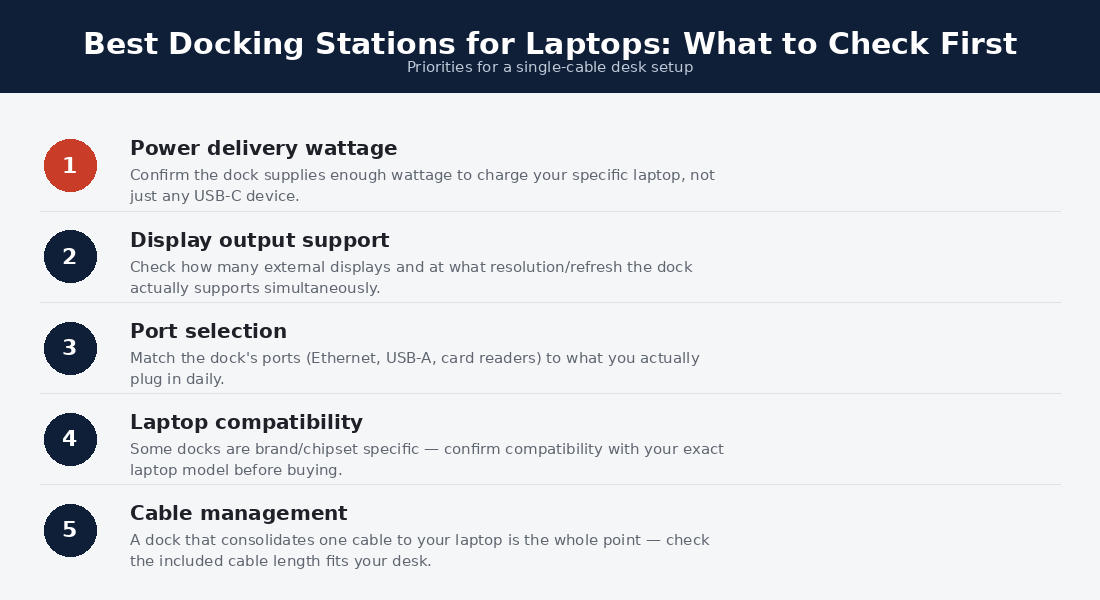
Before buying any dock, it’s worth understanding the handful of specs that determine whether it’ll actually do what you need, because the marketing copy on most of these products tends to bury the important details under a list of port counts.
Thunderbolt vs. USB-C
This is the single biggest fork in the road. Thunderbolt 4 (and the newer Thunderbolt 5 starting to appear on high-end laptops) carries far more bandwidth than standard USB-C, which is what lets a dock drive two or three high-resolution monitors at full refresh rate while also handling fast data transfer and charging, all through one cable.
USB-C docks without Thunderbolt can still do useful work, but they’re sharing a smaller pipe across every connected device, and pushing multiple 4K displays through one usually means a drop in refresh rate or resolution on at least one screen. If your laptop has a Thunderbolt port — check the port icon for the small lightning bolt — and you want more than one external monitor, spend the extra money on a Thunderbolt dock.
Number of Displays Supported
Every dock lists a maximum display count, but that number is a ceiling set jointly by the dock and your laptop’s graphics hardware — not a guarantee. A dock rated for triple 4K output only hits that spec if your laptop’s GPU and Thunderbolt controller can actually push that much pixel data. Integrated graphics on many laptops top out at two external 4K displays regardless of which dock you use, so it’s worth checking your specific laptop model’s documented display limit before assuming a fancier dock will unlock a third monitor.
Refresh rate is the detail that trips people up most often. A dock might technically “support” three 4K monitors, but only at 30Hz, which looks noticeably choppier moving windows around than the 60Hz most people expect from a modern display. If smooth motion matters to you — and it does for most office work, not just gaming — check whether the advertised multi-display spec holds at 60Hz or quietly drops to 30Hz once you add a third screen.
Power Delivery
Docks charge your laptop through the same cable that carries data and video, which means the wattage rating matters. A 13-inch ultrabook is happy with 65W. A 16-inch workstation or gaming laptop often wants 90W or more just to keep pace with what it’s drawing under load, and some high-performance machines will slowly drain their battery even while plugged into a lower-wattage dock if you’re running demanding software. Check your laptop’s original charger wattage and make sure the dock meets or exceeds it.

Mistakes Worth Avoiding
The most common misstep is buying based on port count alone. A dock with 20 ports sounds better than one with 12, but if half of those ports are USB-A 2.0 running at a fraction of modern speeds, the number is misleading. Look at what each port actually supports, not just how many there are.
Another frequent issue is ignoring cable length and desk layout entirely. Thunderbolt cables that ship with docks are often on the shorter side — sometimes under a foot — because Thunderbolt signal degrades over distance. If your laptop sits far from where the dock will live, you may need a certified longer cable, and not every cheap Thunderbolt-branded cable is properly certified.
Finally, don’t assume Mac and Windows compatibility are identical. Some docks rely on DisplayLink software to drive multiple monitors on machines that lack native multi-stream Thunderbolt support, and DisplayLink’s Mac drivers have historically lagged behind the Windows versions in reliability. If you’re on a Mac and want a guaranteed clean multi-monitor experience, favor docks like the OWC or CalDigit that are well-tested on macOS rather than ones optimized primarily for Windows fleets.
It’s also worth resisting the urge to buy the biggest, most expensive dock “just in case.” If you work off a single 13-inch laptop with one external monitor and no plans to expand, an 18-port Thunderbolt dock is mostly dead weight — extra cost, extra desk space, and ports you’ll never plug anything into. Buy for the setup you actually have, and maybe one step beyond it, rather than the setup you might theoretically build someday.
Matching the Best Docking Stations to Your Laptop
The best docking stations are only as good as the port feeding them, so start there. Thunderbolt laptops (business lines, Macs, premium ultrabooks) unlock the full dock tier — multiple high-refresh displays, full wattage, and single-cable everything, per the certification specs at Thunderbolt Technology. Plain USB-C laptops still dock well but need matched expectations: check the port’s display-out and charging support first, because the best docking stations cannot conjure bandwidth the laptop never offered. Mac users add one more check — display-count limits vary by chip tier, and the best docking stations for Mac lives are the ones whose display promises match Apple’s fine print.
The pairing rule of thumb across every desk this site covers: fleet and premium laptops deserve Thunderbolt docks (the CalDigit and Dell picks), port-poor ultrabooks get rescued cheapest by the value tier, and multi-monitor traders should read our trading laptop guide alongside this one — the best docking stations for market work are chosen monitor-count-first. Buy among the best docking stations for the laptop you own, not the one the box art imagines.
Frequently Asked Questions
Do I need Thunderbolt, or will a regular USB-C dock work fine?
It depends on how many monitors you’re running and at what resolution. For a single external display, a standard USB-C dock like the Anker 575 is usually enough and costs considerably less. For two or more 4K monitors, a Thunderbolt dock will give you a noticeably more stable experience, since it isn’t splitting limited bandwidth across every connected screen and device.
Can I use a Thunderbolt dock with a laptop that only has USB-C, not Thunderbolt?
Yes, but you won’t get Thunderbolt speeds or the full display output the dock is capable of. Most Thunderbolt docks are backward-compatible with USB-C, meaning they’ll still charge the laptop and pass through basic peripherals, but multi-monitor performance will be limited by the USB-C connection rather than the dock itself.
Will a dock damage my laptop’s battery if I leave it plugged in all day?
No. Modern laptops, whether Mac or Windows, stop drawing charge once the battery reaches 100% and manage charging cycles automatically. As long as the dock’s power delivery meets your laptop’s wattage needs, leaving it connected all day is standard practice and won’t accelerate battery wear in any meaningful way.
Do docking stations work the same way on Mac and Windows laptops?
Mostly, but not entirely. Thunderbolt docks generally behave consistently across both platforms since Thunderbolt is a shared standard, but some features — particularly multi-monitor support through DisplayLink and certain firmware update tools — are built primarily with one platform in mind. If you’re buying for a Mac, look for docks explicitly tested on macOS rather than assuming a Windows-focused dock will behave identically.
Does the cable that comes with the dock matter, or can I swap it for any USB-C cable?
It matters more than most people expect. Thunderbolt docks typically ship with a certified cable rated to carry full Thunderbolt bandwidth over its specific length, and swapping it for a random USB-C cable from a drawer can quietly cap you at USB speeds or cause an unstable connection, even though everything still technically “works.” If you need a longer cable to reach your desk setup, buy one explicitly certified for Thunderbolt 4 rather than assuming any USB-C cable will perform the same.
The Best Docking Stations, Compressed
The card version: the best docking stations overall remain the CalDigit TS4 tier — expensive, boring, flawless. The best docking stations for fleets wear Dell and Lenovo badges and inherit corporate service. The best docking stations for Macs respect display-count fine print (the OWC pick), the best docking stations on a budget are honest USB-C units like the Anker that promise less and deliver it, and the best docking stations for triple-monitor ambition are the Kensington class built for exactly that. Every tier shares the same three purchase checks: laptop wattage covered with margin, display outputs matching your actual monitors, and a brand whose firmware updates outlive the warranty.
Do the best docking stations work with every laptop brand?
The Thunderbolt and USB-C standards make the best docking stations brand-agnostic in principle, and in practice compatibility runs high — the exceptions cluster around charging wattage (gaming laptops exceed what docks deliver), display-count limits on Mac chips, and the occasional fleet dock that reserves features for its own badge. The safe pattern: buy from the certified tier, check your specific laptop model in the dock maker’s compatibility list (the good brands publish them), and keep the receipt through one full week of your real setup — the best docking stations reveal themselves in the boring reliability of week two.
Are the best docking stations worth it over a $30 hub?
Different tools: hubs add ports for travel; the best docking stations run desks — sustained power delivery, multiple displays at full refresh, wired networking, and the one-cable dock-and-go ritual that makes hybrid work frictionless. The hub wins the bag; the best docking stations win the desk; and most laptop-first professionals eventually own one of each, which is the budget answer this comparison honestly lands on.
How long do the best docking stations last?
Five-plus years is normal for the certified tier — docks outlive the laptops they serve, transfer to successors, and fail mostly at the cable rather than the box, which is why the best docking stations ship with replaceable cables and why a spare belongs in the drawer. Firmware support is the real longevity spec: the brands behind the best docking stations on this list (CalDigit, Dell, Lenovo, OWC, Kensington, Anker, Belkin) all maintain update pipelines that carry docks across OS generations, while the no-name tier quietly strands its owners at the first compatibility shift. Buy the supported tier of the best docking stations once; amortize it across two or three laptops.
Bottom Line
If you only take one thing from this guide, let it be this: match the dock to your monitor count and your laptop’s port type before you look at anything else. The CalDigit TS4 remains the safest all-around pick for anyone with a Thunderbolt laptop and a dual-monitor setup, the Dell WD22TB4 is the right call for standardized business fleets, and the OWC Thunderbolt Dock is the more sensible choice for Mac-first households.
If you’re working with a tighter budget or only need one external display, the Anker 575 will do the job without the Thunderbolt price tag, and if three monitors is the goal, the Kensington SD5000T is built specifically for that. Whichever you land on, check your laptop’s actual Thunderbolt or USB-C spec and its charger wattage before buying — that fifteen minutes of research is what separates a dock that just works from one you’ll be troubleshooting for weeks.
Docks for Multi-Monitor Trading
A docking station is the backbone of any laptop-based trading setup: one cable delivers power, wired Ethernet (worth having when order execution matters), and two or three external displays. If you’re building a trading station, our best laptop for day trading guide covers which laptops pair best with which dock class — and the under-$1,000 trading laptop roundup budgets the dock into the total setup math.


